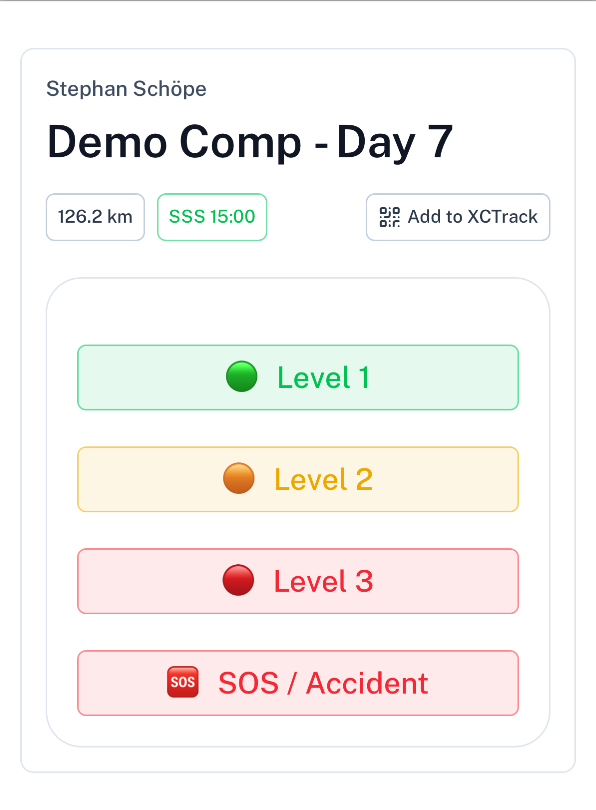
Open your personal pilot link
You receive one private tasklevel.app link for the whole competition, usually by WhatsApp or SMS. It should not be shared with other pilots.
Allow location access
Location is used when sending level, SOS, accident, and sign-out reports so the meet director receives useful context.
Use the portal your way
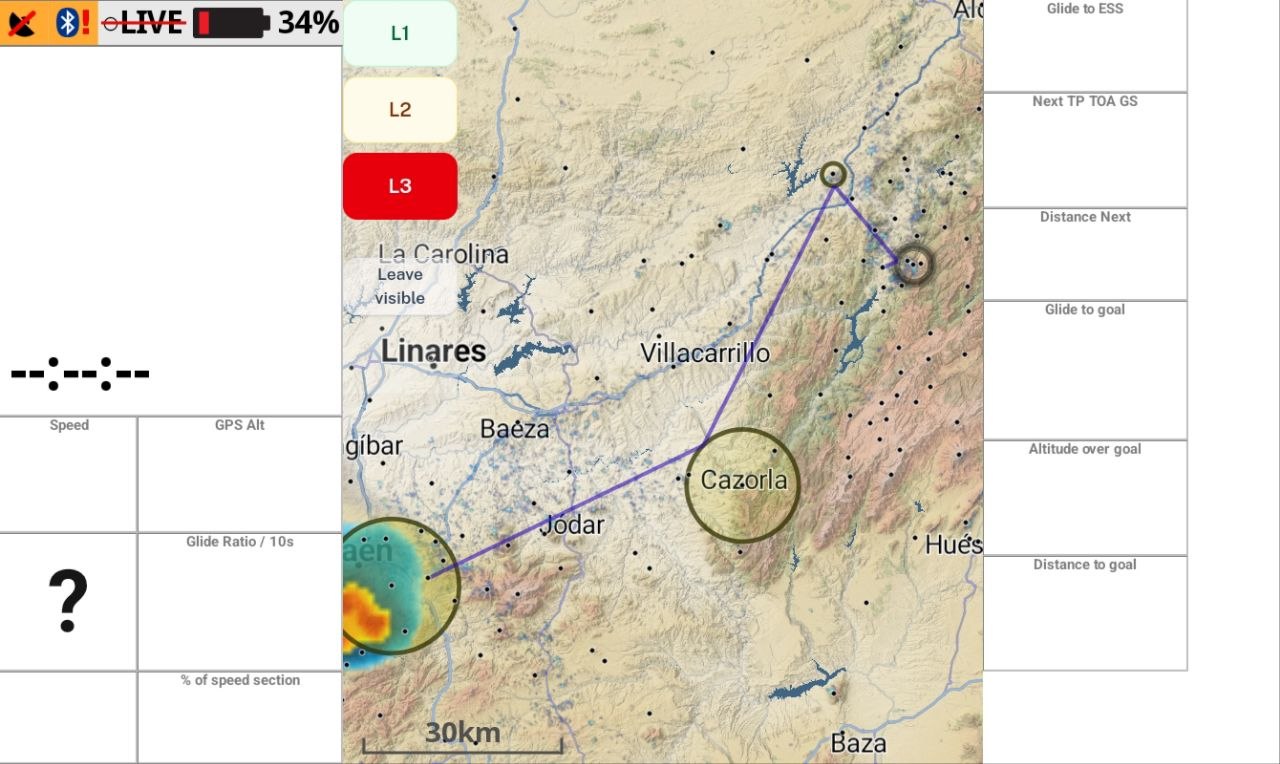
You can use the same personal link more than once: open the full portal on a dedicated XCTrack page, add a small narrow widget for the level buttons on your normal flight pages, or simply open it in a normal phone browser.
XCTrack Web Widget
XCTrack Pro can display the pilot portal in a web widget.
Do not configure XCTrack to reload the page on a timer. The portal refreshes its state itself when reception is available and keeps the last saved state during temporary connection loss.
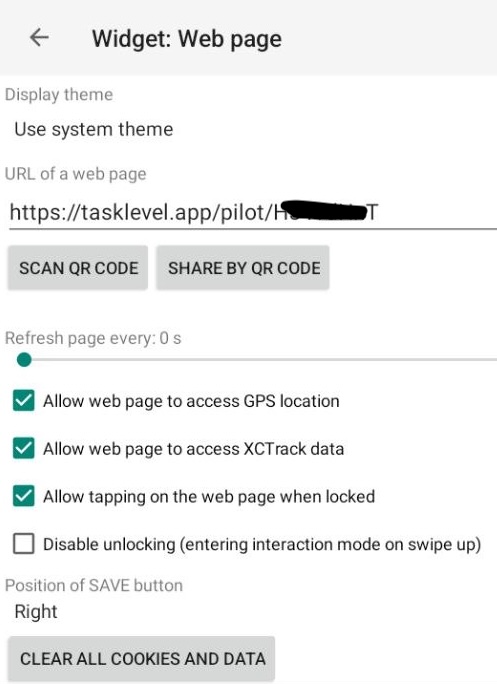
Recommended XCTrack settings
- URL: https://tasklevel.app/pilot/<pilot-token>
- Automatic page reload: disabled
- Allow web page to access GPS location: enabled
- Allow web page to access XCTrack data: enabled to use XCTrack live location when available
- Allow clicking buttons on the web page: enabled
- Allow full web page interaction on swipe up: optional
- Background transparency: 100%
Blank web widget?
If the web widget does not show anything in XCTrack, follow these steps:
- Open Settings → Apps → Android System WebView and check which version is installed.
- Open Play Store and update Android System WebView. On Android 7–9, update Chrome as well because it can provide the WebView implementation.
- Update XCTrack through AIR³ Upgrader or Play Store.
- Restart the device.
Pilot Actions
Pilot actions send structured reports with pilot name, time, and location context. Your competition may only use some of the functions shown here.
Operational Safety Notice
tasklevel.app is an add-on to agreed competition communication channels and does not replace radio communication. Pilots and organizers must not rely on the app as the only way to send or receive safety-relevant information, because messages, locations, reports, or status updates can be delayed, interrupted, or lost. Always carry and use a working radio according to the competition briefing and local safety procedures.
Level 1
Good flying and good conditions.
Level 2
At the limit, but still acceptable.
Level 3
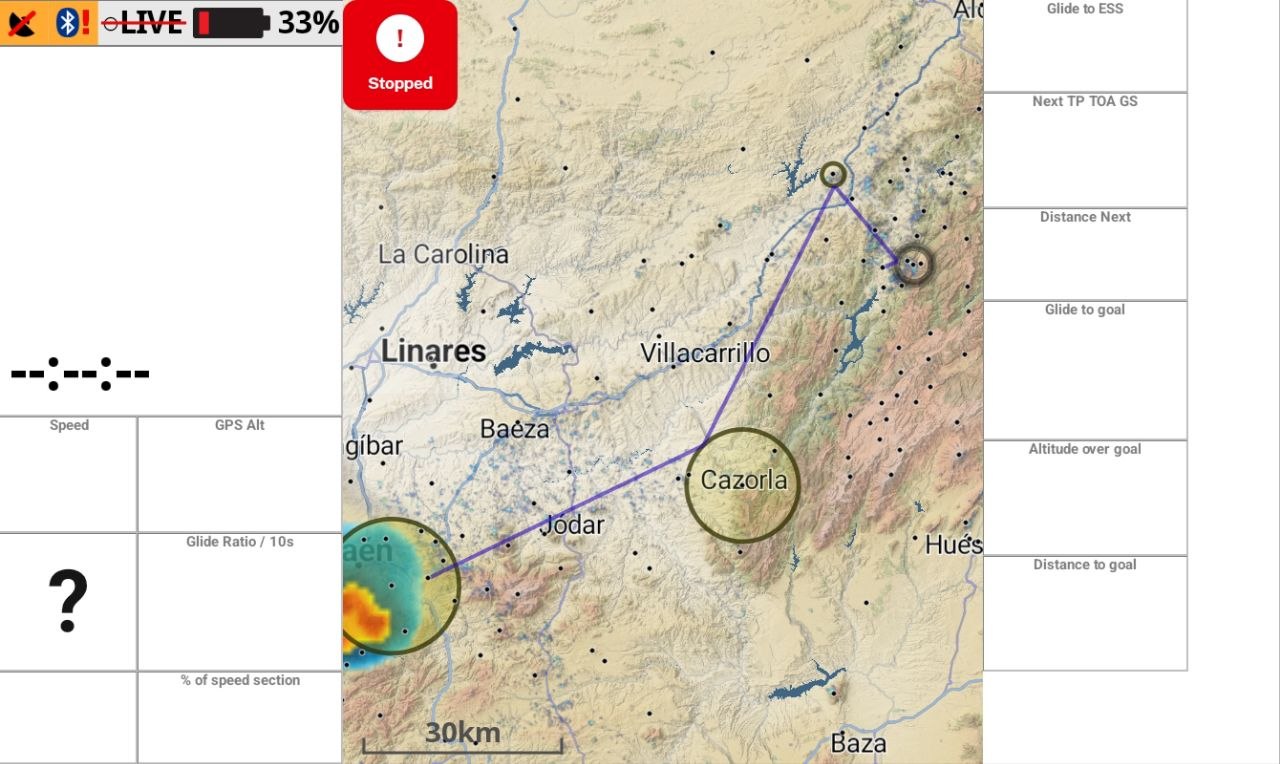
The task should be stopped.
Levels
When a level button lights up, your message was received. Until then it can show queued, sending, or retrying. The compact widget keeps the in-flight controls smaller. Optionally, you can add a reason such as rain, wind, or turbulence.
SOS, Need Help, and Accident
With SOS / Accident, you can either call for help for yourself or report an accident you observed. A help report can be withdrawn.
Task stopped or cancelled
The pilot screen shows the current task state so pilots can see when organizers interrupt the day.
Sign Out
After landing, pilots can report back from the day. The app shows the submitted state instead of sending a separate confirmation SMS.
Feedback
Task feedback unlocks after the pilot has reported back, or after landing detection when sign-out is not required.
Try the demo
The demo page shows pilot levels, task stopped, sign-out, and feedback without requiring a competition login.